![logo.png]](https://help.kusunoki.ltd/hs-fs/hubfs/logo.png?height=18&name=logo.png)
1. What is SpeedVisa?
SpeedVisa is a SaaS platform specialized in managing international students, provided by Kusunoki Ltd.
This service is currently used by approximately 60 Japanese educational institutions accepting international students.
For more details, please visit the following website (currently available only in Japanese):
2. How to Start Using SpeedVisa
Step 1: Log in and Complete Initial Settings
- After the host institution registers your information, you will receive an invitation email.
- Click the [LOGIN] button in the email to open SpeedVisa.
⚠️ Note
The verification link in the invitation email is valid for 10 days from the date it was sent.
Please click it within that period to complete the verification.

You will be redirected to a screen showing “Authenticated.”
From there, you will automatically proceed to the Initial Information page.
Initial Information to Input:
| Item | Notes |
|---|---|
| Name of School, Name, Division | Information provided by the host school. Correct if necessary. |
| Address | Enter the address where you can receive mailings from the host school. |
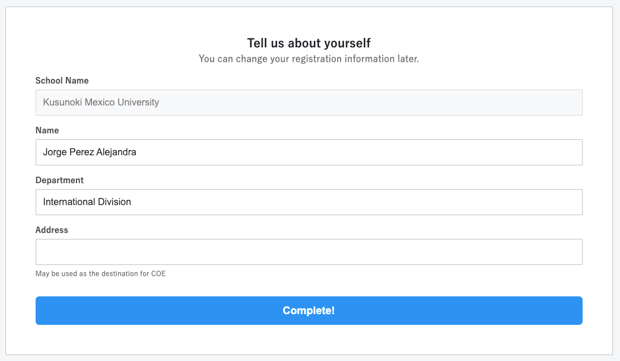
3. After entering the required information, click the [Complete!] button to finish the setup.
💡 Bookmark the login page (https://n.s-visa.com/login) for future use.
- Email Address: The email address where you received the invitation.
- Password: Provided in the invitation email.
3. Check the dashboard
-
After logging in, the dashboard (top screen) is displayed.
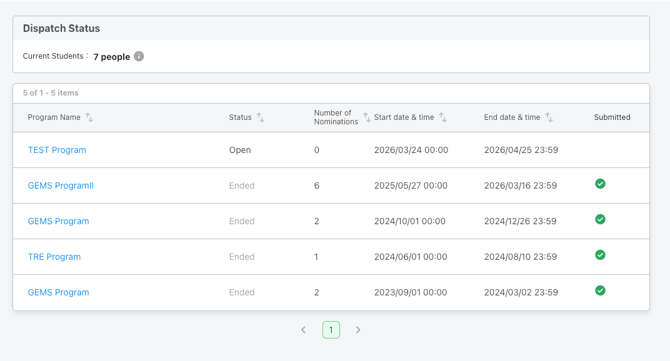
- The number of students currently enrolled at the host institution from your university is shown at the top.
- A list of programs appears on the screen:
Status Description Open Currently accepting nominations Ended Application period has closed Not yet open Not displayed
4. Select a program and start nomination
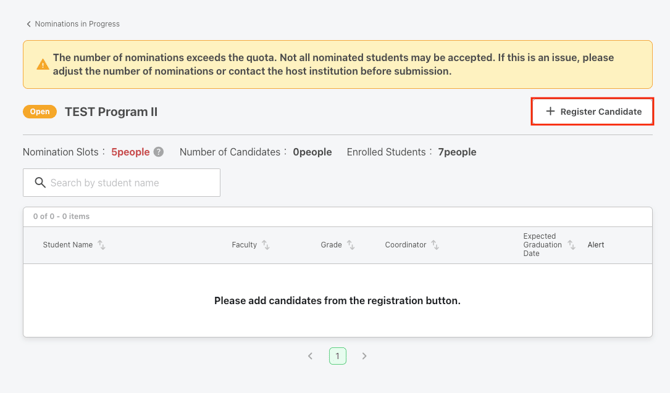
You can nominate students for programs with Status = “Open.”
- Click a program name.
- Open the Program Details page.
- Click [Register Candidate] to start entering student information.
5. Entering Candidate Information

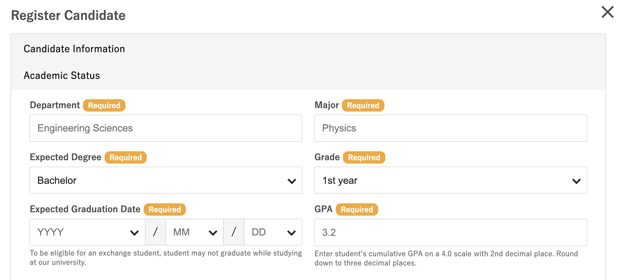

Candidate Information
| Item | Notes |
|---|---|
| Name | Input in Alphabet |
| Date of Birth | Select from menu |
| Nationality | Select from menu |
| Email Address | Enter Email address where the host school can contact to the student |
| Gender | Select from menu |
| Remarks | Enter any notes, remarks, etc if necessary |
Academic Status
| Item | Notes |
|---|---|
| Department | Free input |
| Major | Free input |
| Expected Degree | Select from menu |
| Grade(Academic Year) | Select from menu |
| Expected Graduation Date | Select from menu |
| GPA | Input in number |
Language Proficiency
| Item | Notes |
|---|---|
| English Qualification |
Select from menu If he/she does not have it or do not need to enter, please select "None". |
| Level or Score | Free input |
| English Proficiency based on CEFR | Select from menu |
| Japanese Language Qualification |
Select from menu If he/she does not have it or do not need to enter, please select "None". |
| Level or Score | Select from menu |
Others
| Item | Notes |
|---|---|
| Course Preference | Select from menu |
| File | Upload document file as ordered from Host University |
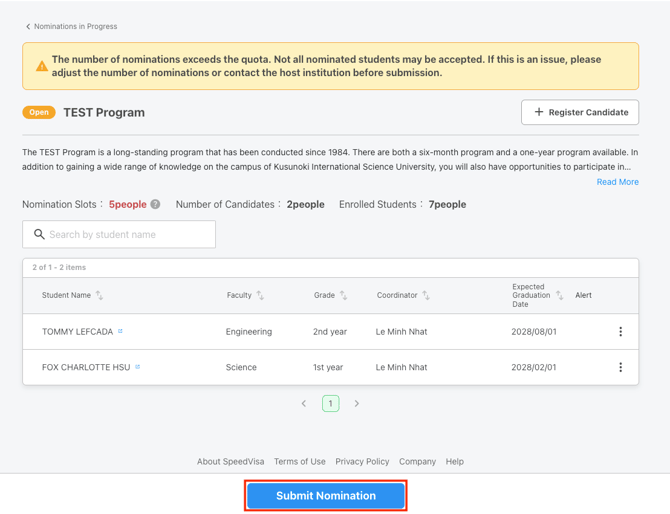
6. Submit Nomination
- Confirm all registered candidate information.
- Click [Submit Nomination].
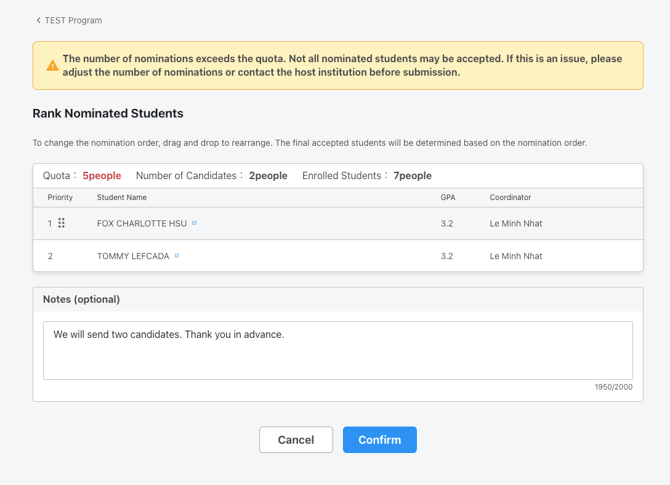
Ranking candidates(推薦順位の設定)
- Candidates are automatically ranked in the order they were entered.
- You can change the order if needed:
- Hover over a candidate to display the drag handle (six dots).
- Click and drag to rearrange.
- If ranking is not required, proceed without changes.
Additional notes(任意)
- Use the remarks field to send additional information to the host institution if needed.
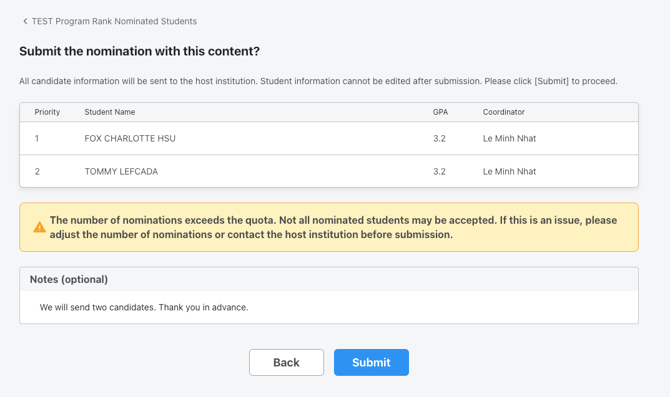
- Click [Confirm].
- Review the confirmation screen.
- Click [Submit] to finalize.
💡 Important
After submission, you cannot edit, delete, or add candidates. Make sure all information is correct before submitting.
7. Check selection results
- Once the host institution completes the selection process, results are sent via SpeedVisa.
- You will receive a notification email.
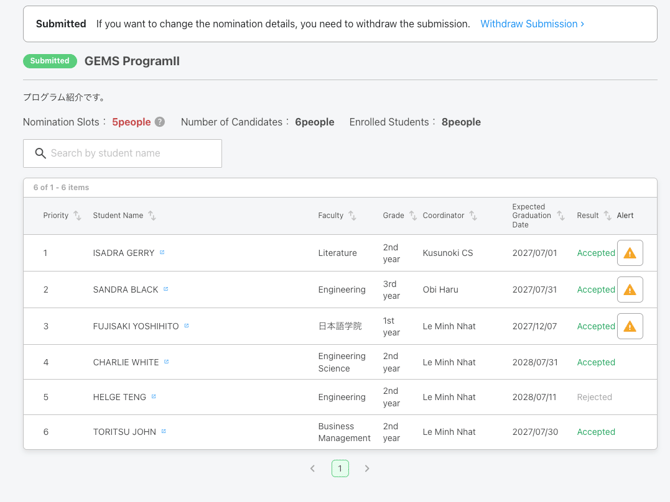
- Click [View Details] in the email to check the results.