
🎯 Who is this for?
Students who want to check or change their profile, email address, password, or passport and residence card information in SpeedVisa.
❓ Question
How do I open and change my personal settings?
✅ Answer
Press the gear icon at the top right of the screen. The Personal Settings screen opens. Select an item from the menu on the left.
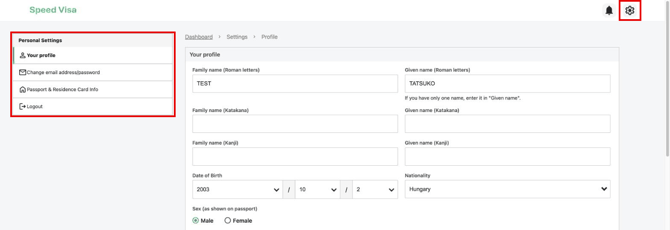
What you can change in each menu
| Menu | What you can change | Button to press |
|---|---|---|
| Your profile | Your name, date of birth, nationality, sex, phone number, emergency contact, and display language | Change |
| Change email address/password | Your email address and your password | Change |
| Passport & Residence Card Info | Your passport image, passport number, and expiration date. Your residence card number, expiration date, period of stay, residence status, and the address on your residence card | Submit change request |
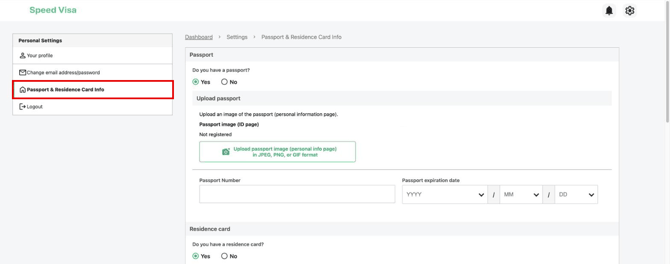
Before you press the button
- Enter your phone number with numbers only. Do not enter hyphens (-). For details, see Why Do I See "Enter numbers only." for My Phone Number?
- To change your password, enter your new password twice and your current password.
- If you do not have a residence card yet, select No for Do you have a residence card?
📌 Important Note
All the information you enter, except your password, is shared with your school. Keep your information correct and up to date.
💡 FAQs / Tips
I do not have my residence card yet. What should I do?
Select No for Do you have a residence card? You can enter the information after you receive your card in Japan.
When should I update my settings?
Update them when your information changes. For example, when you get a new phone number or a new passport.
Can my school see my password?
No. Your password is not shared with your school.