🎯 Who is this for?
International students using SpeedVisa for the first time, or students who want to change their display language or the language used for supported notification emails.
📝 Step-by-step Instructions
✅ When You First Log In
-
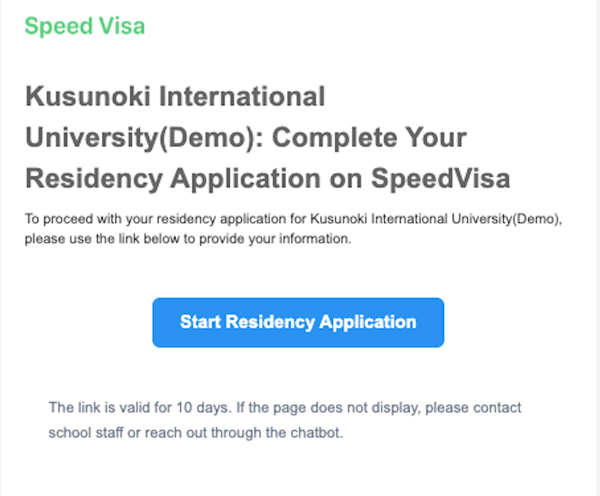
Open the invitation email
Click the blue button in the email to begin your first-time login.⚠️ Important: Invitation emails are always sent in English because they are sent before you select your preferred language. Invitation emails are not available in multiple languages.
-
Set your password and choose your language
On the password setup screen, you'll see a language selection option.
Choose your preferred language before continuing.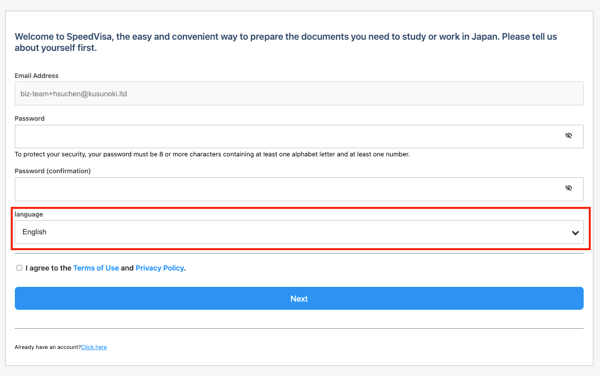
🔄 To Change Your Language Later
-
Go to your dashboard and click the gear icon
The gear icon is located at the top-right corner of the dashboard.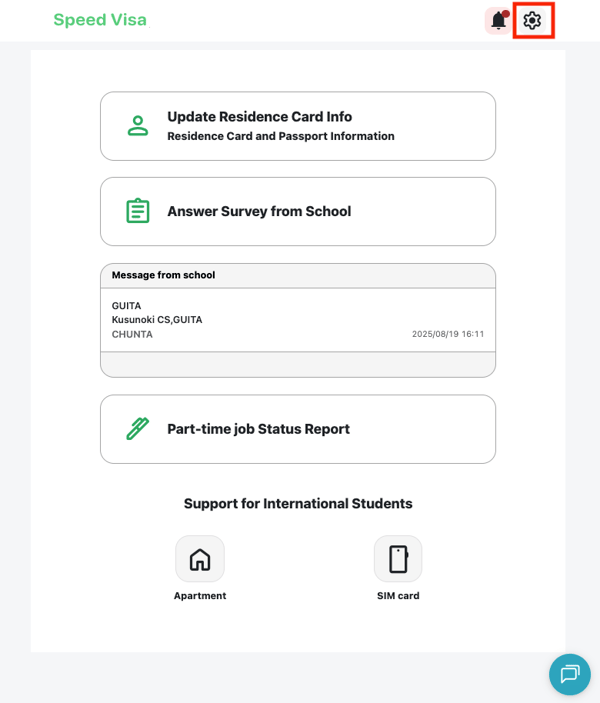
-
Scroll to the bottom of your profile settings
You'll be taken to the Your Profile page.
Scroll down to find the "Language Settings" section.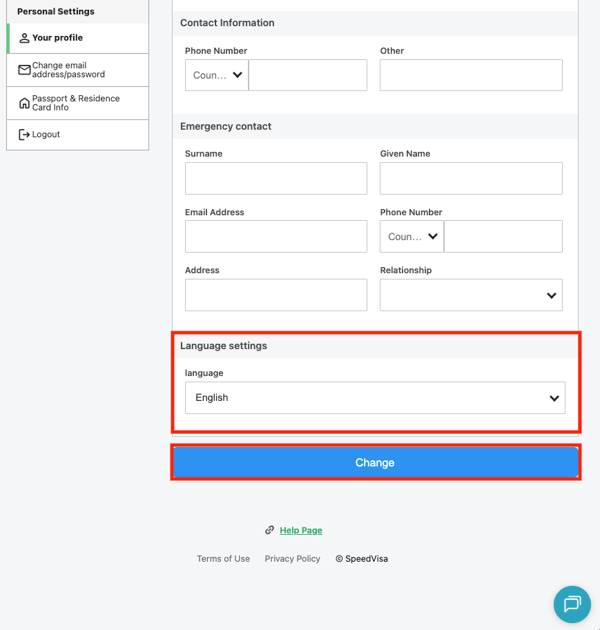
-
Select a new language and save
Choose your desired language and click the “Update” button to save the change.Your new language will be used for supported multilingual notification emails sent after the change.
📧 Language Used for Notification Emails
Notification emails that are available in multiple languages are sent in the language selected in your SpeedVisa account.
You can set or change this language:
- During your first-time account authentication
- From the Language Settings section on the Your Profile page
If you change your language, the new setting will apply to supported multilingual notification emails sent after the change. Emails that were sent before the change will not be updated or sent again.
Invitation emails are different
Invitation emails are always sent in English.
They are sent before you have selected a language and are not included in the multilingual email service. Even after you set or change your language, invitation emails will continue to be sent in English.
This means that not every email from SpeedVisa will be sent in your selected language:
- Supported multilingual notification emails: Sent in your selected language
- Invitation emails: Always sent in English
💡 FAQs / Tips
Q. What languages can I choose from?
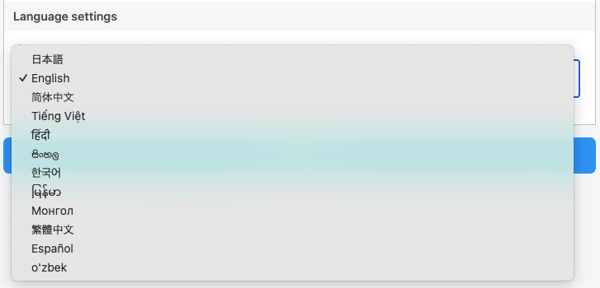
A. You can select from 13 languages shown in the image below.
🆕 Nepali has been newly added (March 11th, 2026)